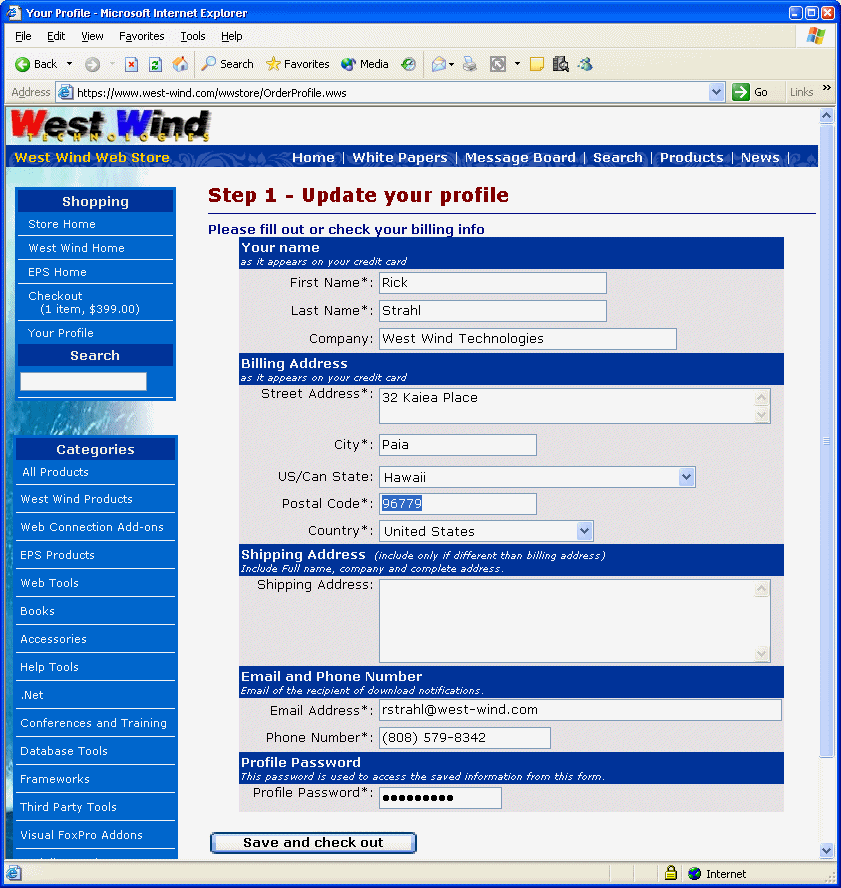
Here you enter all of your customer information. If you remember from the homepage a user profile is controlled by a single UserId cookie that is stored on the client browser optionally. The cookie maps into a UserId field in our customer table.
************************************************************************
* wwStore :: Profile
*********************************
***  Function: Handles display of the profile. This is a dual function
***            method that handles either the standalone profile page
***            or the Order Profile page.
************************************************************************
FUNCTION Profile
PARAMETER pcErrorMsg
PRIVATE plNew

lnCustPk = VAL(Session.GetSessionVar("CustomerPK"))
llSubmit = !EMPTY(Request.Form("btnProfileSubmit") )

IF EMPTY(THIS.cNextMethod)
   THIS.cNextMethod = Request.QueryString("Next")
   IF EMPTY(THIS.cNextMethod)
      THIS.cNextMethod = "Default"
   Endif
ENDIF

plNew = .F.
oCustomer = CREATE("cCustomer")
IF EMPTY(lnCustPK)
   oCustomer.New()
   plNew = .T.
   Session.SetSessionVar("CustomerPk",oCustomer.oData.Pk)
ELSE
   IF !oCustomer.Load(lnCustPK)
   	  oCustomer.New()
   	  plNew = .T.
   ENDIF
ENDIF

*** Error Message if any to display
IF VARTYPE(pcErrorMsg) # "C"
   pcErrorMsg = ""
ENDIF

*** For easier display create a data reference
oCust = oCustomer.oData

IF llSubmit
    oCust.Userid = Session.cSessionId

    *** Read Form vars into the Object
    Request.FormVarsToObject(oCust)

     *** Now perform any custom overrides
	oCust.CountryID = Request.Form("Country")
	oLookups = CREATE("cLookups")
	oCust.Country = oLookups.CountryIdToCountry(oCust.CountryId)

	IF EMPTY(oCust.Password)
	  pcErrorMsg = "Your Profile Password may not be left blank." + CHR(13)
	ENDIF

	*** Error checking here
	IF !oCustomer.Validate()
	   pcErrorMsg = oCustomer.cErrorMsg
	ENDIF

	*** If we have no error we can go on
	IF EMPTY(pcErrorMsg)
	   oCustomer.Save()  && Save to Disk
	   Session.SetSessionVar("CustomerPK",TRANS(oCust.PK))

        *** Figure out where to go next after all is well
        IF !EMPTY(THIS.cNextMethod) AND ;
            !INLIST(UPPER(THIS.cNextmethod),"PROFILE","ORDERPROFILE")
		   EVALUATE("THIS." + THIS.cNextMethod + "()")
		   RETURN
   	  ENDIF

	ENDIF
ENDIF

*** Just redisplay this page
Response.ExpandTemplate( Request.GetPhysicalPath() )

ENDFUNC
* wwStore :: Profile
(Please note some code has been removed from this form - look at the actual source for a little more detail and how the routing works)
This page acts both as a display and response form. It uses the Customer business object to load existing customer information if available. If not, a new customer object is created at this time. When coming in to display all that happens is that the object gets loaded and then profile page is shown. The template then contains all of the oCust fields.
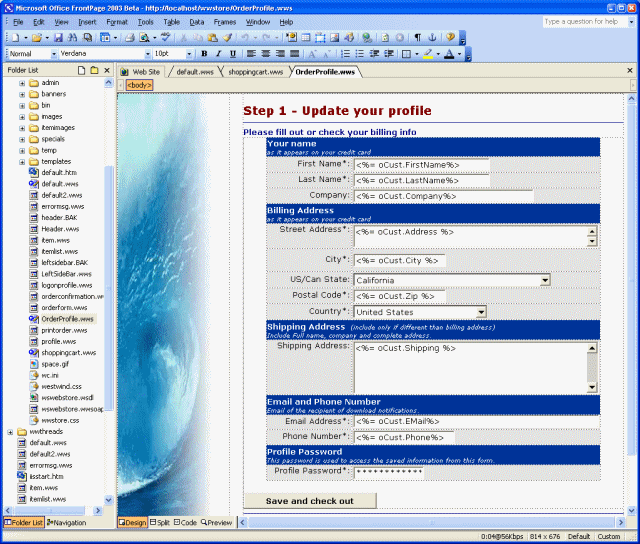
If you click the Save button the llSubmit block is entered and the form variables are collected into the oCust object using the very handy Request.FormVarsToObject method, which walks through the object and finds any form variables that match the name of the property and pull the value from the form into the object. Followin that call a couple of fixups are required.
Next the code validates the input, using the Customer's Validate() method. This method validates the business rules before the customer record is saved. If Validate fails it returns a string which can be directly displayed in the HTML page with:
<%= DisplayMemo( pcErrorMsg ) %>
On failure the code returns without saving. Because we stored all the values into the business object, we can simply re-display the page without any additional code. All our values are saved in the HTML which get resubmitted once the user fixes the problems.
If all goes well, the code checks to see where it needs to go next. The Profile page is used in a number of different pages in the West Wind site. It's used for the standard profile information, for capturing free signup promotions (giveaways) and it can serve all of those operations with a passthrough call.
The actual order profile page is called like this:
************************************************************************
* wwStore :: OrderProfile
*********************************
***  Function:
***    Assume:
************************************************************************
FUNCTION OrderProfile

lnInvPk = VAL(Session.GetSessionVar("InvoicePK"))
IF EMPTY(lnInvPK)
   THIS.ShoppingCart()
   RETURN
ENDIF

THIS.cNextMethod = "OrderForm"
THIS.Profile()

ENDFUNC
* wwStore :: OrderProfile
Note the cNextMethod is set to OrderForm. This is what gets called once the customer info has validated and been saved. The OrderForm page basically redisplays the shopping cart and asks for final confirmation of the order along with the credit card info and some user information:
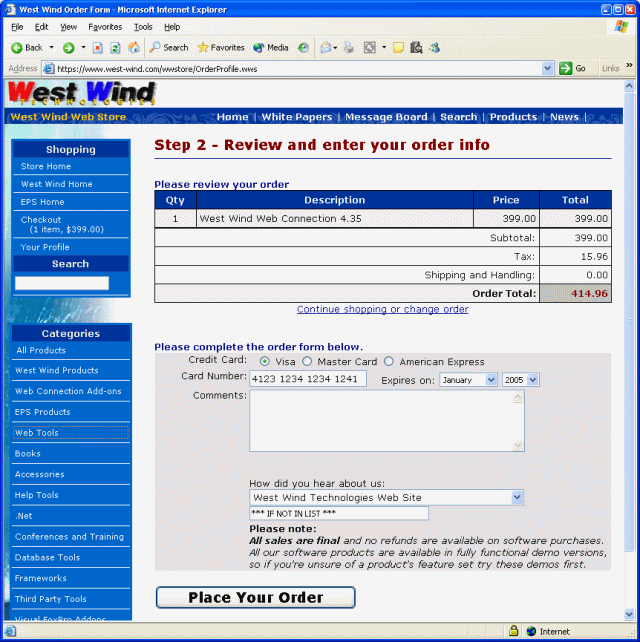
This code is very similar to the code that was used in the shopping cart page. A temporary invoice object is created and the customer and lineitem data is attached to it. Then the lineitems are displayed using oInv.HTMLLineItems. The rest of the HTML form fields are simply bound to the Credit Card and referral fields. OrderForm.wws is basically just a display request. It handles displaying this page.
When this form is submitted the SubmitOrder method is fired.
************************************************************************
* wwStore :: SubmitOrder
*********************************
FUNCTION SubmitOrder

*** ... error checking code not listed

*** Good order - let's build it!
oCustomer = CREATE("cCustomer")
IF !oCustomer.Load(lnCustPk)
   THIS.Profile()
   RETURN
ENDIF
oCust = oCustomer.oData

oTLineItems = CREATE("cTLineItems")

*** Create new invoice
oInvoice = CREATE([WWS_CLASS_INVOICE])
oInvoice.New()

*** Load the Form Variables into the Invoice object
Request.FormVarsToObject(oInvoice.oData)

*** Custom Overrides
oInvoice.oData.CCExp = Request.Form("ccMonth") + "/" + Request.Form("ccYear")

*** Add Customer Object
oInvoice.oCustomer = oCustomer

*** Load LineItems from
oInvoice.oLineItems = oTLineItems.LoadLineItems(lnInvPK)
IF oInvoice.oLineItems = .NULL.
   THIS.OrderForm("This order contains no lineItems",oTCustomer)
   RETURN
ENDIF

*** Now let's check our business rules for
*** the actual invoice - on error redisplay form
IF !oInvoice.Validate(llPrintOnly)
   pcNotes = oInvoice.oData.Notes
   THIS.OrderForm(DisplayMemo(oInvoice.cErrorMsg))
   RETURN
ENDIF

*** UP TO THIS POINT NOTHING's BEEN SAVED YET!
*** Invoices saves customer, invoice and lineitems to disk

*** Save the invoice and clear the current invoice setting
IF !oInvoice.Save()
      pcNotes = oInvoice.oData.Notes
      THIS.OrderForm(DisplayMemo(oInvoice.cErrorMsg))
      RETURN
ENDIF

*** Clear the Virtual Invoice
Session.SetSessionVar("InvoicePK","")

THIS.OrderConfirmation(oInvoice,llPrintOnly)

ENDFUNC
* wwStore :: SubmitOrder.wws
This method again rebuilds the 'virtual' invoice. Then it adds the value submitted from the form using the Request.FormVarsToObject() method which populates the object. The object is then validated and checked for errors. If errors occur the OrderForm is redisplayed with an error message which is passed as a parameter to the OrderForm method.
Otherwise the order is now finally saved to disk. oInv.Save saves the current information captured from the order form, the customer information and writes the lineitems into the 'real' lineitems table. The temporary lineitems get cleared. You can look at the cInvoice::Save method to see how this is done.
Finally, the order has completed. All that's left to do is display a confirmation page and send a confirmation email, which is also an HTML form - notice that all of these use HTMLLineItems to display the HTML for the invoice.
FUNCTION OrderConfirmation
LPARAMETER loInvoice, llPrintonly
PRIVATE pcTemplate, oInvoice

oInvoice = loInvoice

*** Now render the invoice portion
oInv = oInvoice.oData
oCust = oInvoice.oCustomer.oData

*** Retrieve and merge the Confirmation Form
loEval = CREATE("wwEval")
pcInvoiceTemplate = loEval.MergeText( Extract(File2Var(Config.cHTMLPagePath + "templates\invoice.wc"),"<body>","</body>") )

*** Send Email Confirmation
   loIP = CREATE("wwIPStuff")
   loIP.cMailServer=Config.cMailServer
   loIP.cSenderEmail=Config.cMailFromEmail
   loIP.cSenderName=Config.cMailFrom
   loIP.cCCList = Config.cMailCC
   loIP.cRecipient = oCust.Email
   loIP.cSubject = "West Wind Technologies Order Confirmation # " + oInv.Invno

    *** Mail Confirmation has custom HTML text and embeds invoice
   loIP.cMessage = loEval.MergeText(File2Var(Config.cHTMLPagePath + "templates\mailconfirmation.wc") )

   loIP.cContentType = "text/html"
   loIP.SendMailAsync()

   Response.ExpandTemplate( Config.cHTMLPagePath + "orderconfirmation.wws")

ENDFUNC
* wwStore :: OrderConformation
What's happening here is that a template page is used to display a full invoice form that contains the invoice header and customer information in addition to the lineitems. The template is then loaded and evaluated to a string using the wwEval::MergeText method which in turn relies on oInv::HTMLLineItems to generate the actual lineitems. This text is stored into pcInvoiceTemplate.
Then this text is embedded in another template page for display as the order confirmation page in orderconfirmation.wws. This page contains the text above the invoice itself - Thank you for your order and so on which is displayed on the Web and when merged with mailconfirmation.wc as emailed to the client using wwIPStuff. Notice that the email is sent in HTML format.
Alright! There you have it. You've placed an order and completed the entire order process! I hope this walk through gives you a good idea on how the store works. Make sure you read up on the business object topics to find out where you can hook in your own custom logic.
